#this line needs to be modified to target the CA and the OID
#of the cert type that you want to look at (if you are restricting it
#Disposition of 20 means certs that are active
certutil -config "<CA server FQDN>\<CA NAME>" -view -out "user principal name,certificate expiration date" -restrict "certificatetemplate=<templateOID>,Disposition=20"  > .\certdump.txt

$results = @()
$recordbound = $false
Try { $data = get-content .\certdump.txt -erroraction stop } catch {
  #error handling
 }
For ($i=0; $i -lt $data.count; $i++) {
 #process the multiline record to get user UPN account name and certificate expirations
 if ($recordbound) {
  $result = new-object PSobject
  $UPN = $data[$i].substring($data[$i].indexof('"')+1).trim('"')
  $dateval = $data[$i+1].substring($data[$i+1].indexof(":")+1)
  $dateval = [datetime]$dateval
  add-member -input $result NoteProperty UPN $upn
  add-member -input $result NoteProperty Expiration $dateval
  $i = $i+2
  $recordbound = $false
  $results += $result
 }

 #start of a new multiline record
 if ($data[$i] -match "^Row ") {
  $recordbound = $true
 }
}

#User may have renewed before, so there can be more than one cert...so group by user UPN
$groupdata = $results|group UPN
$curdate = get-date

#Look at all certificates for a given user and select the one with the furthest expiration date (I.e. last one issued to this UPN)
$groupdata = $groupdata | Select Name,@{name="expiration";expression={($_.group|sort expiration |select -last 1).expiration}}

foreach ($entry in $groupdata) {
 $debugstr = "$($entry.name)  Expiration $($entry.expiration)"
 $timediff = new-timespan -start $entry.expiration -end $curdate
 $days = 0 - $timediff.days
 if ($days -lt 30) {
  $debugstr += ".  In expiration window."
  #expiration warning, need to find primary account email and send it, if they are still active
  $user = get-aduser -ldapfilter "(&(objectclass=user)(userprincipalname=$($entry.name)))" -properties enabled,manager
  if ($user.enabled) {
   $debugstr += "  Account is enabled."
   #do something with it
  } else {
   $debugstr += " User 431 is disabled, ignoring."
  }
 }
 write-debug $debugstr
}
Showing posts with label Authentication. Show all posts
Showing posts with label Authentication. Show all posts
Thursday, February 20, 2014
Finding expiring smartcards (or other certificates) on the CA
Recently I was working on a method of discovering and creating alerts for expiring Smartcards. While looking at some of the various methods to pull details from FIM certificate manager or the AD certificate services CA that issues the certs, I ended up goinig with certutil as the tool of choice for pulling the data. The build in filtering of the results helped give the ability to confine the results to certain certificate types, and also to avoid anything that was revoked. Putting this together with output processing in Powershell, it is pretty easy to pull together a list of certs and their expiration time. Using grouping, you can avoid the problem of having multiple results per user (for those who have already renewed). Since Smartcards use UPN as an identifier, I went with that attribute to help get the user details. For other use cases that would need to be modified and the Get-ADUser functionality wouldn't be required.


Tuesday, August 13, 2013
Kerberos SPN configuration errors for dummies
In a previous article, I had written about the problem of duplicate Kerberos SPN's (Service principal names) and how to identify them. Since then, I notice a recurring theme in my life where application and database people typically don't understand authentication configurations at all. As a result, accounts get swapped out, configuration changes are made without any thoughts to what will work, and so on. In the end the whole application environment may have downgraded itself to NTLM or just stopped working altogether. So, I thought I would take another shot at trying to simplify kerberos interactions for the typical application web server talking to a database server.
First of all, lets understand what kerberos is doing for us. Authentication, is how we identify ourselves. In the example WEB Server->SQL Server, it could be:
1) a service account on the webserver that is logging into the SQL server
2) The end user (at the browser) authenticating to the webserver and the webserver is set to log into the SQL server on the user's behalf (delegation)
Authentication uses protocols to ensure that the various applications and servers are all speaking the same language. Typically this is NTLM, NTLMv2, or Kerberos v5. Here we will focus on kerberos.
The way kerberos works is, you have a "Service" that you want to access. This "Service" has a type and a host machine that it runs on. Example:
1) Web service on machine Server1.mydomain.com. In Kerberos SPN format: HTTP/server1.mydomain.com
2) MSSQL service on machine ServerSQL1.mydomain.com. In Kerberos SPN Format: MSSqlSvc/ServerSQL1.mydomain.com
There are other variations that include port numbers and domain names, but to keep things simple we will stick to standard ports and windows services here.
So what is the SPN used for? Lets look at it in less technical terms first:
John wants to call Amy on the phone. Amy wants to ensure that the people who call her are really who they say they are. To enable John to meet Amy's requirements, he calls Amy through a phone Operator. The phone operator has a list of names (account), phone numbers (service) and passwords (secrets/keys) for everyone that calls through their system, including John and Amy. John tells the operator his password and the number he is calling, the operator looks up the phone number and the operator gives him a temporary code to use for his conversation. John gets through to Amy on the phone and tells her the code. Amy uses a special program that takes her password and decrypts the temporary code that John got from the operator. If she can decrypt the code, she knows that she is talking to John.
And now for the technical terms. When a client connects to the service, they are told that they need to authenticate. The Client connects to a KDC (Kerberos Key Distribution Center) and to request a ticket. In the windows world, the KDC is a domain controller (Active Directory). During a user's logon (or an application starting running under a service account), the user will log into the KDC to get a Ticket Granting Ticket (TGT). When it wants to connect to a service, the user will sent a request to the KDC for a Service Ticket. The KDC will look through its database to see what account holds the SPN for the service that the user wants to connect to. If it can find one, it will issue a ticket that is encrypted to both the Requestor and the Account with the SPN. The user will then take this ticket, send it back to the application that they are connecting to and the application will review the ticket to grant/deny access. (see the previous article for the step by step)
The problem can come in at this point in several ways. If the SPN was set up on the wrong account...then the ticket is encrypted to the wrong person.
Back to the non-technical example:
When John calls the operator, let us assume there was some bad information in the operators list of names and passwords. The Operator then provides a temporary code that works for Susan. When John gives this code to Amy, Amy can not decrypt the code and will have to reject the phone call.
In another form of this problem, if more than one person have the same phone number (duplicate SPN in kerberos), the operator may look up the wrong name.
To solve these problems, it is important to know
First of all, lets understand what kerberos is doing for us. Authentication, is how we identify ourselves. In the example WEB Server->SQL Server, it could be:
1) a service account on the webserver that is logging into the SQL server
2) The end user (at the browser) authenticating to the webserver and the webserver is set to log into the SQL server on the user's behalf (delegation)
Authentication uses protocols to ensure that the various applications and servers are all speaking the same language. Typically this is NTLM, NTLMv2, or Kerberos v5. Here we will focus on kerberos.
The way kerberos works is, you have a "Service" that you want to access. This "Service" has a type and a host machine that it runs on. Example:
1) Web service on machine Server1.mydomain.com. In Kerberos SPN format: HTTP/server1.mydomain.com
2) MSSQL service on machine ServerSQL1.mydomain.com. In Kerberos SPN Format: MSSqlSvc/ServerSQL1.mydomain.com
There are other variations that include port numbers and domain names, but to keep things simple we will stick to standard ports and windows services here.
So what is the SPN used for? Lets look at it in less technical terms first:
John wants to call Amy on the phone. Amy wants to ensure that the people who call her are really who they say they are. To enable John to meet Amy's requirements, he calls Amy through a phone Operator. The phone operator has a list of names (account), phone numbers (service) and passwords (secrets/keys) for everyone that calls through their system, including John and Amy. John tells the operator his password and the number he is calling, the operator looks up the phone number and the operator gives him a temporary code to use for his conversation. John gets through to Amy on the phone and tells her the code. Amy uses a special program that takes her password and decrypts the temporary code that John got from the operator. If she can decrypt the code, she knows that she is talking to John.
And now for the technical terms. When a client connects to the service, they are told that they need to authenticate. The Client connects to a KDC (Kerberos Key Distribution Center) and to request a ticket. In the windows world, the KDC is a domain controller (Active Directory). During a user's logon (or an application starting running under a service account), the user will log into the KDC to get a Ticket Granting Ticket (TGT). When it wants to connect to a service, the user will sent a request to the KDC for a Service Ticket. The KDC will look through its database to see what account holds the SPN for the service that the user wants to connect to. If it can find one, it will issue a ticket that is encrypted to both the Requestor and the Account with the SPN. The user will then take this ticket, send it back to the application that they are connecting to and the application will review the ticket to grant/deny access. (see the previous article for the step by step)
The problem can come in at this point in several ways. If the SPN was set up on the wrong account...then the ticket is encrypted to the wrong person.
Back to the non-technical example:
When John calls the operator, let us assume there was some bad information in the operators list of names and passwords. The Operator then provides a temporary code that works for Susan. When John gives this code to Amy, Amy can not decrypt the code and will have to reject the phone call.
In another form of this problem, if more than one person have the same phone number (duplicate SPN in kerberos), the operator may look up the wrong name.
To solve these problems, it is important to know
- What accounts (users or computer objects) are in use
- What service they run on
- What servers they are configured on
- Do they run services on non standard ports
- Is there delegation from one service to connect to another service (double hop)
- How does authentication from from end to end (have a diagram or documentation as many of the support people you end up working with do not know anything about your application)
From here you can search for the SPN's that would be in use to look for duplicates. While searching for duplicates, you can find where the SPN's are assigned. If the SPN's are assigned to the wrong accounts, then obviously it won't work. Make sure you get things in the right places, and try to avoid changing things once it is set up and working. Document, Document, Document, and update the document. Avoid running multiple services and application environments on the same account.
Symptoms of duplication SPN's (the same SPN was set on more than one account)
1) Log events on domain controllers pointing out the duplicate SPN
2) SCOM alerts from the AD management pack for the duplicate SPN alerts in #1
3) Application running NTLM authentication when it was configured for kerberos
4) Application working some times, and giving access denied at other times
Symptoms of incorrectly assigned SPN (the SPN was assigned to the wrong account)
1) Authentication fails all the time.
Symptoms of missing SPN (the SPN was never assigned, was misspelled, not entered correctly, or the SPN name doesn't match how users access the service [ex: short name vs fully qualified domain name])
1) Authentication fails completely
2) Authentication is using NTLM
Tools to use:
1) Queryspn.vbs script from microsoft
2) Setspn
3) Event viewer on multiple machines
4) klist (to view kerberos ticket, or lack of one after connecting to an application)
5) fiddler or some other similar web debugging tool that can show authentication details in the packets to show protocol type
6) Netmon to view kerberos KDC interactions to find any errors (SPN not found, encryption type not supported, etc)
7) Increased debug logging in microsoft OS. Can turn on kerberos debugging for all machines involved.
Thursday, December 27, 2012
"System detected a possible attempt to compromise security" Enter network password popup comes up on 2008R2
I came across an odd issue recently where a system was getting this error whenever you tried to access network resources. Additionally domain connectivity was not working very well. Some symptoms included:
1) Dns registration failed (secure DDNS)
2) Group policy processing failed: Event 1053 "Could not resolve the user name"
3) LSASRV 40960 events with authentication errors to various kerberos services such as domain controllers LDAP/ SPNS, and cifs/ for the DFS namespace.
4) TerminalServices error 1067, Cannot registery TERMSRV Service Principal Name
5) When joining the domain and changing primary dns suffix "Changing the primary domain DNS name of this computer failed." "A Directory service error has occurred"
6) Klist shows no kerberos tickets
When I looked at this in netmon, all of the Kerberos transactions for TGT requests would receive a preauthentication required error from the KDC (domain controller) and it wasn't following up on that. After trying to dig around for information related to that, and any possible Kerberos settings that might impact this, I could find nothing. I looked in the registry for LSA settings and found LMCompatibilityLevel at 1. After changing this to a 2, everything started to work fine. From the Microsoft description of NT Compatibility levels, I don't see how this would impact Kerberos transactions, but apparently there may be some correlation. This fix worked for a short while, however everything broke again soon after. Later investigation found the Kerberos encryption types had been restricted to AES only, which was not compatible with the domain. After enabling RC4-HMAC, the problems went away. I have seen related issues on other machines where neither of these two should have been the problem. So perhaps there are many causes.
Thursday, July 28, 2011
Strange source of lockouts seen on the ISA server
A few times in our environment we have seen user account lockouts showing up on the ISA servers. These are configured to require authentication in order to allow proxying. In this type of case 90% of the time, the problem will be at the user's workstation. There can be several causes, and it is typically internet enabled applications that don't support windows authentication against proxies. When they receive a request to authenticate, some applications are really stupid and think they are authenticating against their remote service's servers, sending whatever 3rd party username/password combination to your proxy server. If the user name is the same as you domain user ID, you get locked out (have seen this with Skype). Others may allow user's to provide their username and password, and later on after the domain account password is changed, users forgot they where they typed it in. In rare cases, there are applications that find their way into caching domain credentials, but not always keeping up to date with them. The case I will present here is the later, and the details are incomplete.
When you see the proxy server locking out a user, when checking their machine, first look at every obvious internet enabled application. Sometimes you can obviously find something and update it or remove it. If you are still not sure, I recommend installing microsoft netmon 3.3 or higher on the workstation and running it for a while until the next bad password attempt shows up. The advantage of this network capture software is that it can provide the process name or process ID of the application that is doing the communication. Look for the HTTP requests and typically you will want to look for plain text authentication attempts as your culprit. Use this filter:
HTTP.Request.HeaderFields.ProxyAuthorization AND HTTP.Request.HeaderFields.ProxyAuthorization.Authorization.BasicAuthorization.Scheme == "Basic"
In the case I am bringing up, the process name was not provided and the ID was 4. PID 4 is system processes/system services. The packet capture showed plain text authentication using the user's previous domain password. Since it is a system process, we looked at the system services and came up with Akamai NetSession Interface service. This is something that installs as a download manager or similar software that Adobe is bundling with some of its downloads. I didn't get into a deep dive inspection of the machine to see where it manages to cache this plain text password, but this sounds like a good security project for someone to look at. If the software is grabbing domain credentials at some point, it would be nice to know the controls around it. In any case, this issue has come up several times in our environment with the same service. Disabling or removing fixes the problem. The problem may only come up in certain versions or due to some specific use case as we have only seen this a handful of times although there are over a hundred machines with the service.
I hope this information is helpful in troubleshooting this type of authentication failure and lockout source. For additional information on account lockouts, you can visit my account lockout tracking general practice page.
When you see the proxy server locking out a user, when checking their machine, first look at every obvious internet enabled application. Sometimes you can obviously find something and update it or remove it. If you are still not sure, I recommend installing microsoft netmon 3.3 or higher on the workstation and running it for a while until the next bad password attempt shows up. The advantage of this network capture software is that it can provide the process name or process ID of the application that is doing the communication. Look for the HTTP requests and typically you will want to look for plain text authentication attempts as your culprit. Use this filter:
HTTP.Request.HeaderFields.ProxyAuthorization AND HTTP.Request.HeaderFields.ProxyAuthorization.Authorization.BasicAuthorization.Scheme == "Basic"
In the case I am bringing up, the process name was not provided and the ID was 4. PID 4 is system processes/system services. The packet capture showed plain text authentication using the user's previous domain password. Since it is a system process, we looked at the system services and came up with Akamai NetSession Interface service. This is something that installs as a download manager or similar software that Adobe is bundling with some of its downloads. I didn't get into a deep dive inspection of the machine to see where it manages to cache this plain text password, but this sounds like a good security project for someone to look at. If the software is grabbing domain credentials at some point, it would be nice to know the controls around it. In any case, this issue has come up several times in our environment with the same service. Disabling or removing fixes the problem. The problem may only come up in certain versions or due to some specific use case as we have only seen this a handful of times although there are over a hundred machines with the service.
I hope this information is helpful in troubleshooting this type of authentication failure and lockout source. For additional information on account lockouts, you can visit my account lockout tracking general practice page.
Wednesday, July 14, 2010
Finding account lockout source (general practice)
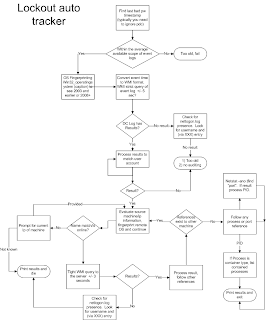
A lot of escalations come my way regarding difficult account lockout issues, and repeat lockout events. Over time, I took some of the methodology I used in tracking down the root source of the failed logon and put it into an auto tracker script. This runs quite quickly using WMI's WIN32_NtlogEvent class with a very tight filter for the timegenerated attribute. When providing and upper and lower limit, searching event logs can be done very quickly on remote machines. This is important as in most cases you may traverse through 2 or 3 machines to get to the originating machine.
When starting to track down a lockout source, either manually or through automated practice, you will check the bad password timestamps for all domain controllers [this is an ldap query to all writable domain controllers so it can be slow. Alternatively a much faster approach is to read the metadata of that attribute on the PDC only to get the time and source]. You can do this with ldap queries to each one, or use the microsoft lockoutstatus tool. Ldap queries will allow you to script it. The key point here is that the PDC will always have the most recent bad password time, even if the events are not located on that machine. So for automation purposes, I simplified the process by ignoring the PDC. You could always find the most recent reported event and compare it to see if the PDC is more recent by at least a few seconds to see if the PDC is where you should look. It is also important to note that you are assuming the last bad password time that you are looking at is related to the problem and is not something else like the user mistyping a password. This may require several runs of an automated script to see if you get different sources.
From the bad password time stamp, you can go to the security log for that domain controller, filtering for failure audits and check the event text or InsertionStrings to get the source machine or source IP. Different event ID's have different information. Some failed logons will not show up in the log, or may have a blank source. In this case it is important to have netlogon debugging enabled so you can check the netlogon.log, as it may contain more details for the source. In netlogon, you want to look at the entry in parenthesis that shows via XXXXXX. Ensure the code in the line is a failure, and not success, so you don't chase the wrong entries. For automating, it is helpful to have some code that decodes the various security event hex codes and integer values to plain text for display purposes (my code).
When looking at sources in the event log, you need to carefully check source IP and source workstation if both are present. Sometimes they differ, and the source workstation may be the machine you are already on. Sometimes it is best to use the IP as a preferred value for source. Go to the source machine and look at the security logs there for additional information. When you get down to workstations and member servers, you may get process id's and port information that can help narrow down to a process. Checking logon type codes can be a dead giveaway for scheduled tasks and services with bad cached passwords. On some occasions you will not see a source machine in the security log. If this is the case, you will want to enabled netlogon debugging (from command prompt use: nltest /dbflag:0x2080ffff. Some logon events will show up there, and you can get further source information from the events. Just search the text files in c:\windows\debug\netlogon* for the user name and look for other machine names in any event that doesn't have a 0x0 status.
You can look at my high level overview for how I wrote my tracking script. For security events, I had to identify some standards between each event ID's I wanted to work with and use insertionstrings to provide a standardized generic PSObject that can be provided by parsing the available information.
 Some useful commands to find uses of an account on a local machine (open powershell as administrator, set the target account name without domain)
$targetaccount = "johndoe"
write-host "`n checking services"
gwmi win32_service |select name,startname | where {$_.startname -match $targetaccount}
write-host "`n checking processes"
gwmi win32_process |select name,@{name="ownerdomain"; exp={$_.getowner().domain}},@{name="owneruser" ; expr={$_.getowner().user}} | where {$_.owneruser -match $targetaccount}
write-host "`n dumping any IIS appPools"
c:\windows\system32\inetsrv\appcmd.exe list apppool /text:* |where {$_ -match "APPPOOL\.NAME|userName"}
write-host "`n checking remote desktop connections"
qwinsta
write-host "`n checking scheduled tasks"
schtasks /query /v -fo CSV | where {$_ -match $targetaccount}
write-host "`n checking mapped network drives for currently logged on user"
dir hkcu:\network
When starting to track down a lockout source, either manually or through automated practice, you will check the bad password timestamps for all domain controllers [this is an ldap query to all writable domain controllers so it can be slow. Alternatively a much faster approach is to read the metadata of that attribute on the PDC only to get the time and source]. You can do this with ldap queries to each one, or use the microsoft lockoutstatus tool. Ldap queries will allow you to script it. The key point here is that the PDC will always have the most recent bad password time, even if the events are not located on that machine. So for automation purposes, I simplified the process by ignoring the PDC. You could always find the most recent reported event and compare it to see if the PDC is more recent by at least a few seconds to see if the PDC is where you should look. It is also important to note that you are assuming the last bad password time that you are looking at is related to the problem and is not something else like the user mistyping a password. This may require several runs of an automated script to see if you get different sources.
From the bad password time stamp, you can go to the security log for that domain controller, filtering for failure audits and check the event text or InsertionStrings to get the source machine or source IP. Different event ID's have different information. Some failed logons will not show up in the log, or may have a blank source. In this case it is important to have netlogon debugging enabled so you can check the netlogon.log, as it may contain more details for the source. In netlogon, you want to look at the entry in parenthesis that shows via XXXXXX. Ensure the code in the line is a failure, and not success, so you don't chase the wrong entries. For automating, it is helpful to have some code that decodes the various security event hex codes and integer values to plain text for display purposes (my code).
When looking at sources in the event log, you need to carefully check source IP and source workstation if both are present. Sometimes they differ, and the source workstation may be the machine you are already on. Sometimes it is best to use the IP as a preferred value for source. Go to the source machine and look at the security logs there for additional information. When you get down to workstations and member servers, you may get process id's and port information that can help narrow down to a process. Checking logon type codes can be a dead giveaway for scheduled tasks and services with bad cached passwords. On some occasions you will not see a source machine in the security log. If this is the case, you will want to enabled netlogon debugging (from command prompt use: nltest /dbflag:0x2080ffff. Some logon events will show up there, and you can get further source information from the events. Just search the text files in c:\windows\debug\netlogon* for the user name and look for other machine names in any event that doesn't have a 0x0 status.
You can look at my high level overview for how I wrote my tracking script. For security events, I had to identify some standards between each event ID's I wanted to work with and use insertionstrings to provide a standardized generic PSObject that can be provided by parsing the available information.

$targetaccount = "johndoe"
write-host "`n checking services"
gwmi win32_service |select name,startname | where {$_.startname -match $targetaccount}
write-host "`n checking processes"
gwmi win32_process |select name,@{name="ownerdomain"; exp={$_.getowner().domain}},@{name="owneruser" ; expr={$_.getowner().user}} | where {$_.owneruser -match $targetaccount}
write-host "`n dumping any IIS appPools"
c:\windows\system32\inetsrv\appcmd.exe list apppool /text:* |where {$_ -match "APPPOOL\.NAME|userName"}
write-host "`n checking remote desktop connections"
qwinsta
write-host "`n checking scheduled tasks"
schtasks /query /v -fo CSV | where {$_ -match $targetaccount}
write-host "`n checking mapped network drives for currently logged on user"
dir hkcu:\network
Monday, January 25, 2010
mod_auth_vas woes
This last week I was assisting some application teams in setting up the Active Directory service account connection in mod_auth_vas. After messing around with some container permissions in AD, we were able to get a successful account created and everything working fine with the setup-mod_auth_vas script. The problem however is that creating accounts manually in AD is a big no-no here. We have an identity management system that requires users to request service accounts, which get tied into ownership and application records. So, after our success, we needed to delete the account and try again the "proper" way.
So we went about the proper process for account creation and moved it to a container, set up all the permissions for the person running the script, and the problems began. The script kept hitting an error of the object already existing. Digging around in the script code pointed to vastool service create. Checking this command only gave an option to create and remove, but not modify. Googling for an answer did not give up anything useful. Most of the discussion was related to the script and how to get it working in certain cases.
Eventually I ran into a document for another Vintella product documentation which had some more detail discussion about setting up the keytab. So after a few attempts, we found a working solution with this:
1) edit AD account UPN to use SPN format
2) setspn -A HTTP/fqdn.of.server Domain\AD-username
3) ktpass -princ HTTP/fqdn.of.server@DOMAIN.DOMAIN.DOMAIN -mapuser AD-username@DOMAIN.DOMAIN.DOMAIN -crypto RC4-HMAC-NT -pass -ptype KRB5_NT_PRINCIPAL -out HTTP.keytab -kvno 255
4) copy the keytab file over to your Vas configuration folder, chgrp daemon HTTP.keytab, chmod 640
5) Configure httpd.conf for mod_auth_vas if it is not done already.
So we went about the proper process for account creation and moved it to a container, set up all the permissions for the person running the script, and the problems began. The script kept hitting an error of the object already existing. Digging around in the script code pointed to vastool service create. Checking this command only gave an option to create and remove, but not modify. Googling for an answer did not give up anything useful. Most of the discussion was related to the script and how to get it working in certain cases.
Eventually I ran into a document for another Vintella product documentation which had some more detail discussion about setting up the keytab. So after a few attempts, we found a working solution with this:
1) edit AD account UPN to use SPN format
2) setspn -A HTTP/fqdn.of.server Domain\AD-username
3) ktpass -princ HTTP/fqdn.of.server@DOMAIN.DOMAIN.DOMAIN -mapuser AD-username@DOMAIN.DOMAIN.DOMAIN -crypto RC4-HMAC-NT -pass
4) copy the keytab file over to your Vas configuration folder, chgrp daemon HTTP.keytab, chmod 640
5) Configure httpd.conf for mod_auth_vas if it is not done already.
Subscribe to:
Posts (Atom)